Take Stripe payments on your business website
Connect your own Stripe account. You are the merchant, the money lands in your balance, and refunds and disputes stay with you.
Built in - connect your account and it works
How it actually works
Webkio uses Stripe Connect. You link your existing Stripe account once, with OAuth, and every charge your site takes - a shop order, a rental deposit, a payment link - is a direct charge on YOUR account. You are the merchant of record: the money arrives in your Stripe balance, and refunds and chargebacks are yours to handle, not ours to sit in the middle of.
Setting it up
- In your dashboard, open Payments and then Payment methods.
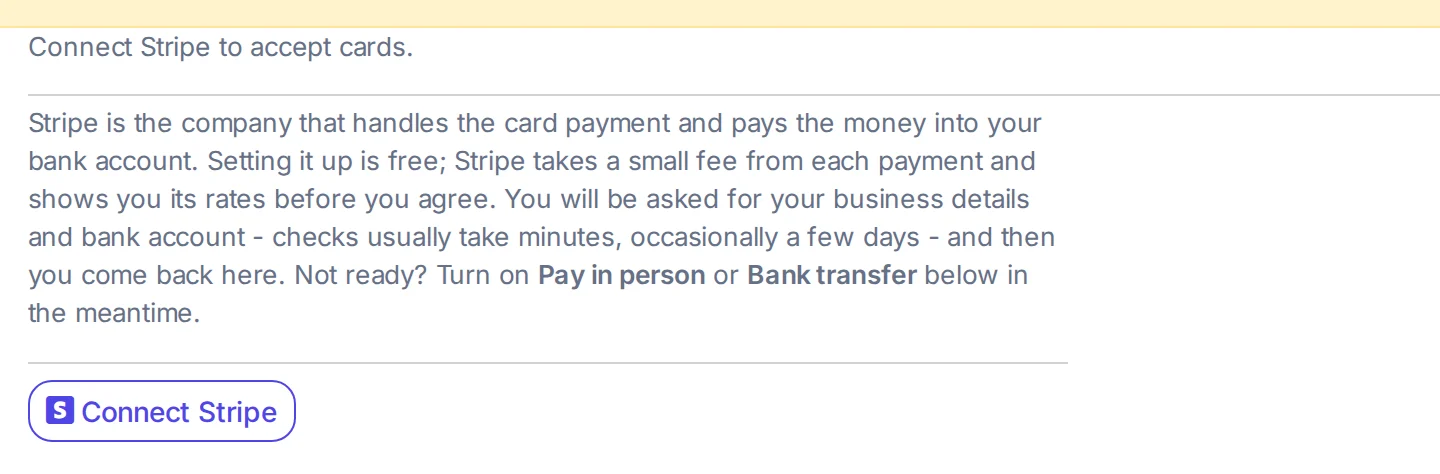
- Choose Connect Stripe. You will be sent to Stripe to approve it, and back again.
- If Stripe asks for more details before it will let you charge, it says so on that screen - that is between you and Stripe, and it is the usual onboarding for a new account.
- Your shop, bookings, rentals and payment links then take card payments with no further setup.
Once it is connected
- Where the money goes
- Into your own Stripe balance, on Stripe's own payout schedule. Webkio never holds it. That is the practical difference between this and a marketplace that collects on your behalf and pays you later.
- Where to see a payment
- Orders shows each shop order and its status, from pending through to refunded. Payments shows the money side. Both are in your dashboard; Stripe's own dashboard has the same payments with its fee breakdown.
- Refunds and chargebacks
- Yours, because you are the merchant of record. Refund from Stripe and the order status follows. A chargeback is between you and the cardholder's bank, with Stripe in the middle - we are not a party to it, which also means we cannot resolve one for you.
- Before you go live
- Stripe has a test mode with card numbers that always succeed or always fail. Use it to walk your own checkout once. Switching back to live is a toggle in Stripe, and forgetting it is why a real customer sees a decline that looks like your site is broken.
When it does not work
- Stripe says the account cannot accept charges yet
- Stripe asks new accounts for identity and bank details before it will let money move, and it will not take a payment until that is done. The prompt is in your Stripe dashboard, not ours - we only read the capability flag Stripe gives us.
- A payment worked but the money is not there
- Stripe holds the first payout for a few days on a new account. The charge is in your Stripe balance, on its way; check the Payouts page in Stripe for the date.
- Testing without taking real money
- Use Stripe test mode and its test card numbers. Switch back to live before you launch, or real customers will get a card decline that looks like a fault on your site.
Worth knowing first
Two things to know before you connect. Webkio takes a small percentage of each online sale on top of Stripe's own fee, and the exact figure depends on your plan - the Payments screen states it plainly before you switch anything on. And you need a Stripe account that can accept charges in your country, which Stripe decides rather than us; new accounts are sometimes asked for documents before the first payout.
Build the site first
Every integration here attaches to a site you have already made. Start from a template for your trade and connect things once it is live.