Send website form leads to HubSpot
Each inquiry from your site is submitted to a HubSpot form the moment it arrives, so the contact exists in HubSpot before anyone has opened their email.
Built in - two IDs from HubSpot, no code and no API token
What the HubSpot connection does
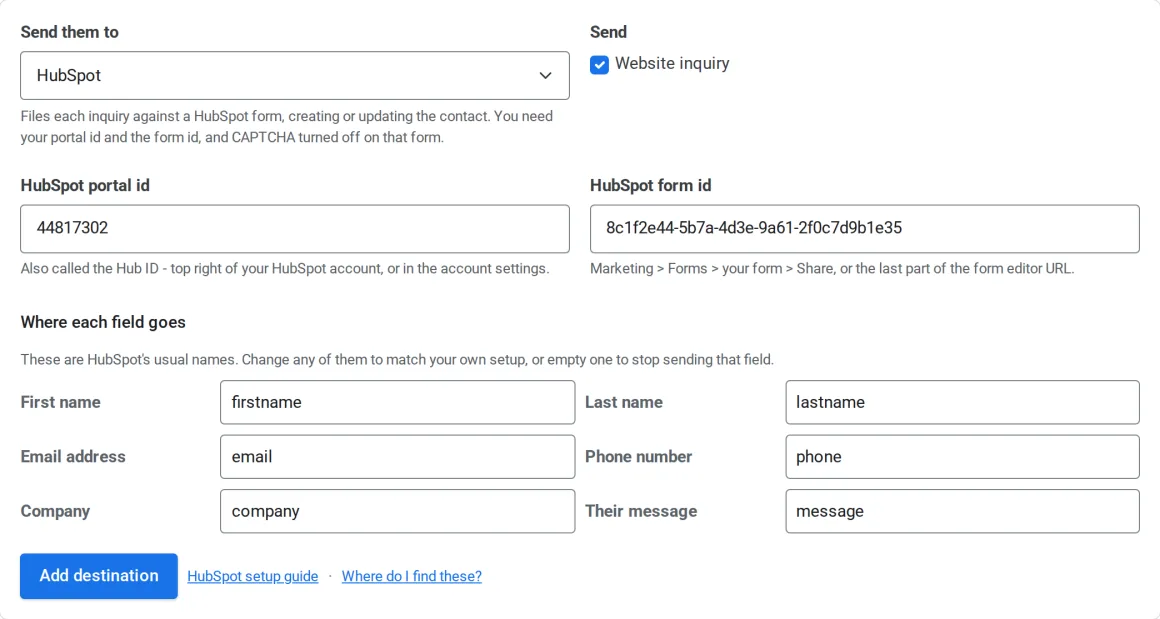
Webkio submits each inquiry to a HubSpot form you choose, through the same public submission door HubSpot gives every website. You hand over two identifiers, your portal ID and the form ID, and nothing that could read or change the rest of your HubSpot account. HubSpot then does what it does with any form submission: it creates the contact, or updates the one that already has that email address. The inquiry also stays in your Webkio Inbox, so HubSpot holds a second copy and never the only one.
One inquiry, as HubSpot receives it
Say you run a landscaping company and Dana Whitfield writes in from your Patios page on a Sunday evening. With HubSpot's standard property names, this is the submission it gets:
- firstname
- Dana
- lastname
- Whitfield
- [protected]
- phone
- (614) 555-0137
- message
- "We have a 12 by 20 foot backyard and want a paver patio in before June. Can you come out and quote?"
- Page address (submission context)
- The address of your Patios page, which HubSpot records as where the form was filled in
- Page name (submission context)
- Your site's name, so two sites feeding one portal can be told apart
Company is left out because Dana didn't give one: a blank is never sent as though it were data. An extra question of your own on the form isn't part of this submission either. It stays with the complete inquiry in your Inbox.
Connecting a site to HubSpot
- In HubSpot, create a form under Marketing, then Forms, with the fields you want filled, and turn CAPTCHA off for that one form. This door rejects a form that has it on.
- Copy two things: the ID of your HubSpot account, which its API calls the portal ID, and the form ID. The form ID is in the form's embed code, and in the page address while you edit the form.
- On the site you want, go to Site settings and open Lead delivery (CRM). You have to be the account owner to see the form there.
- Choose HubSpot, paste both IDs, and look over Where each field goes if anybody has renamed your HubSpot properties.
- Press Add destination, then Send test, and read what HubSpot answered on the card before you trust it with a real inquiry.
Step-by-step HubSpot setup in the docs
A week of deliveries, read off the card
- Monday, 9:12 am
- An inquiry arrives. The worker that sends lead deliveries runs every minute, so HubSpot has the submission within about a minute, and Recent deliveries shows it as Delivered with the time HubSpot took to answer.
- Wednesday, 2:40 pm
- HubSpot is slow and times out. That counts as worth retrying, so the delivery is tried again after 30 seconds, then 2, 4.5, 8 and 12.5 minutes: six attempts over roughly 27 minutes before it stops. Most short outages are over well inside that.
- Thursday, 11:05 am
- A colleague switches CAPTCHA back on for the form. HubSpot now refuses the submission with an error, and an error about the submission itself isn't retried, because sending the same thing again gets the same answer. The card reads Last attempt failed, with HubSpot's own words.
- Thursday, 4:30 pm
- CAPTCHA goes off again. Open Recent deliveries, find the inquiry by the person's name, and press Send again. Only deliveries that never got through offer that link, so each person is filed once.
When HubSpot is the wrong destination
If you get a handful of inquiries a month and answer them from your phone, a CRM adds a place to look instead of removing one. The Inbox already keeps every message, and a Slack or Telegram alert will get you to it faster than HubSpot will. Connect HubSpot when somebody other than you does the follow-up, or when your tasks and deal stages already live there and a new contact is the thing that starts them.
HubSpot questions
- Does it create a deal as well as a contact?
- No. It files a form submission, and HubSpot turns that into a contact. Opening a deal from a new submission is automation you would build on HubSpot's side, if your HubSpot plan offers it. Built once there, it runs for every inquiry this sends.
- HubSpot rejected the submission. Why?
- Nearly always one of two things: CAPTCHA is still on for that form, or a name under Where each field goes doesn't match a property in your portal. The destination card shows HubSpot's own error after "Last attempt failed", and Recent deliveries lets you send that inquiry again once it's fixed.
- Will the same person be added twice?
- HubSpot matches a form submission to an existing contact by email address, so a second inquiry from the same address goes to the contact that is already there instead of creating another. Two different addresses are two contacts, as they would be from any form on any website.
- Do orders and bookings go to HubSpot too?
- No, by design. This sends inquiries: the contact form on any page, and property inquiries on a site that has listings. Somebody who has already paid is a customer, and filing them as a new lead puts them back at the start of a pipeline they have finished.
Worth knowing first
Adding a destination needs a plan that includes lead delivery. The Which plans box on this page reads the current list. And be clear about what we can vouch for: the request is built to HubSpot's published form-submission format and our tests hold it to that, but we haven't run it inside your portal, so Send test is the proof that counts. It takes a minute and it's the first thing to do.
Build the site first
Every integration here attaches to a site you have already made. Start from a template for your trade and connect things once it's live.