Turn website inquiries into Trello cards
A new card at the top of your list for each inquiry, named after the person, with what they wrote in the description.
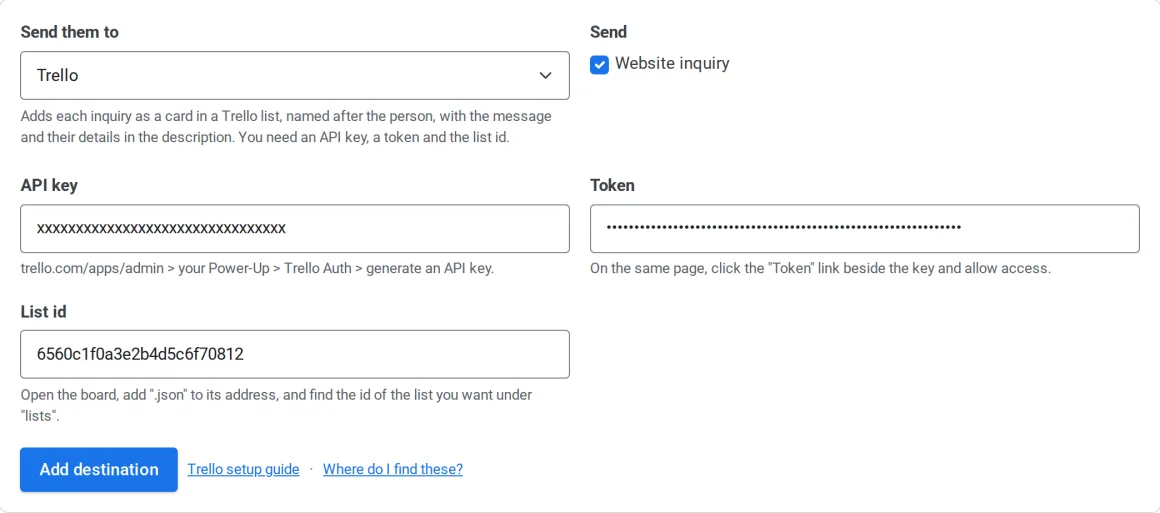
Built in - an API key, a token and a list ID
Start with the card itself
Before any explanation, here is the thing you would get. A kitchen remodeler has a list called New requests. Tom Barrera writes from the Cabinet Refacing page, and this card appears above the others:
- Card title
- Website inquiry: Tom Barrera
- Description opens with
- His message as he typed it: "Our cabinets are solid oak but dated. 22 doors and 9 drawer fronts. Is refacing cheaper than replacing?"
- Then, one to a line
- Name, Email and Phone, each label in bold: Tom Barrera, [protected], (919) 555-0152
- Closing line
- Website inquiry / your site name / the address of the page he wrote from
- Position
- Top of the list
Extra questions on your own form, a budget or a preferred date, are added as further labeled lines, so a longer form simply gives you a fuller card.
Why a card, and why the top of the list
If your jobs already move left to right across a Trello board, the missing piece is the first card. Webkio makes it. Each inquiry becomes a card placed at the top of one list, so the newest request is the first thing anyone sees on opening the board. The card holds the whole inquiry in its description, which means the person who drags it to Quoted has what they need without opening another tool.
Getting the three values
- Create a Power-Up on Trello's Power-Up admin page. Here it is only a container for the API key. You don't have to build anything.
- Generate a new API key there, then follow the Token link on the same page and allow access. Copy both.
- Find the ID of the list the cards should land in. Our Trello guide, linked under these steps, shows the quickest way.
- Open the Lead delivery (CRM) page from that site's settings menu in Webkio, choose Trello and paste the three values.
- Add it and send a test. A card titled "Test from Webkio: Webkio Test" should be sitting at the top of the list.
Trello setup guide in the docs
Pause, Resume and moving the list
- Pause skips, it doesn't hold
- While a destination is paused, inquiries still arrive in your Inbox, but none of them become cards, and they aren't saved up for later. Pause for a day and that day has no cards.
- Those cannot be sent later either
- Send again in Recent deliveries is for deliveries that were tried and failed. A skipped inquiry was never tried, so it has no row there. Copy any that matter onto the board yourself.
- Moving cards to a different list
- The card doesn't let you edit the list ID. Remove the destination and add it again with the new one. It takes a minute, and the cards already on the board stay where they are.
- Better than pausing
- If you're reorganizing the board, leave it running and drag the new cards where they belong afterward. A card in the wrong list is easier to fix than a card that never existed.
Not every inquiry deserves a card
A board fills up. If most of what your form receives is "are you open Sunday", cards for all of it bury the three that are real jobs, and somebody ends up archiving for ten minutes every morning. In that case send inquiries to a chat channel and make cards by hand for the ones worth quoting. A card for everything works when nearly every inquiry is a job: a quote request, a booking request, an application.
Trello: common questions
- Can cards go to different lists depending on the inquiry?
- One destination writes to one list. A site can have more than one destination though, so property inquiries can go to one list and contact-form messages to another. Sorting by what the message says is something to do on Trello's side once the card exists.
- The token worries me. What can it do?
- Trello says a token, with its API key, can read and write for your entire Trello account, which is more than this needs and is simply how Trello's keys work. Ours is kept encrypted and never displayed again. If that reach is too wide, create a separate Trello user who belongs only to the one board and make the token as that user.
- Where do labels, members and due dates come from?
- Not from us: the card has a title, a description and a position, and nothing else. If you want a member or a due date on every new card, set that up with whatever automation your Trello plan gives you. A card from us is an ordinary card and is treated like one.
- A card didn't appear. How do I find out why?
- Open Recent deliveries on the destination card in Webkio. Each attempt is listed with Trello's answer, and a list that was archived or a token that was revoked are the first things to check. Fix it, then press Send again on the one that failed.
Worth knowing first
Lead delivery is on the paid plans listed under Which plans, and only the account owner can set it up. We follow Trello's published API and test the request itself. We have no board of yours to try it on. The test card is how you and we both find out.
Build the site first
Every integration here attaches to a site you have already made. Start from a template for your trade and connect things once it's live.