Add Google Tag Manager to your business website
One container ID, and every tag you manage in Google runs on your site without you coming back here to add each one.
Built in - paste your container ID, no snippet
What the add-on does
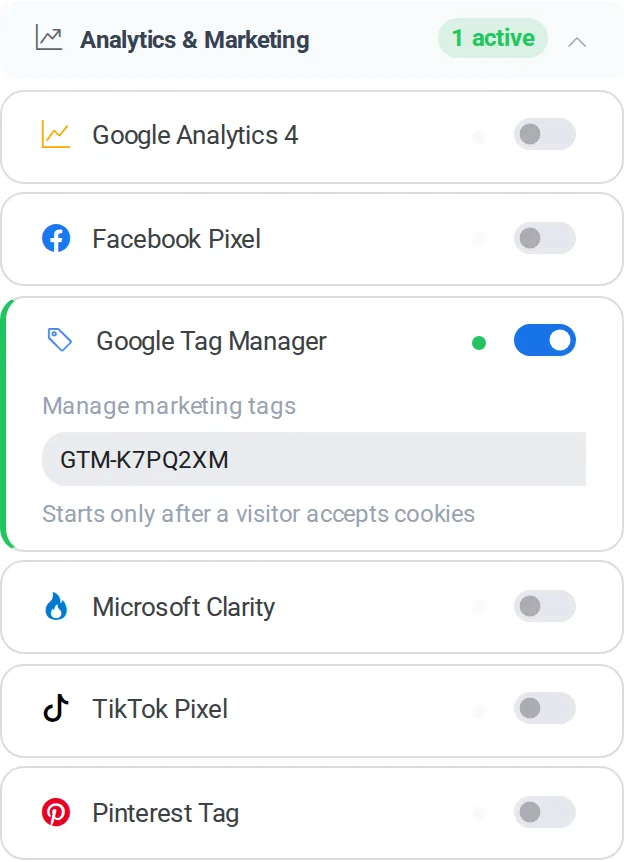
Google Tag Manager is a container: one piece of code on your site, inside which you or your agency add and change tags from Google's side. Webkio has it as a named add-on in the builder. You paste the container ID, the one beginning GTM-, and the container is loaded on every published page, pages you add later included. The one behavior to understand before you rely on it is consent: the container counts as marketing, so it doesn't load for a visitor until they accept marketing cookies on your banner.
What consent does to your numbers
The figures here are invented to show the arithmetic. Yours will differ. Suppose 1,000 people visit in a month and 550 of them accept marketing cookies.
- Visitors
- 1,000
- Times the container loads
- 550, because it waits for consent
- Orders that month, on your Orders screen
- 20
- Conversions a Google Ads tag in the container can see
- Only orders placed by those 550 people. If orders split the same way as visits, 20 x 0.55 = 11
So Google Ads showing 11 conversions against 20 real orders isn't a broken tag. It's the consent rate showing up in the report. Compare with your Orders screen, which counts every sale whatever the visitor answered on the banner, before you decide a campaign is failing.
Adding your container
- In Tag Manager, create a container for your site if you have none, and copy its container ID. The field here takes the GTM- form: GTM-, then letters and numbers.
- Open the site in the Webkio builder and choose Add-ons, the last button on the left.
- Under Analytics & Marketing, switch Google Tag Manager on and paste the container ID.
- Publish the site. The add-on writes to the live site, so nothing changes for visitors until you do.
- In Tag Manager, run Preview against your live address and accept the cookie banner when it appears. Preview shows which tags fired and in which order.
Triggers that match how a Webkio site behaves
- A shop or food order
- Paying sends the customer to an order page whose address starts with /order/ followed by the order number. A Page View trigger on Page Path starts with /order/ fires on it.
- The catch with order pages
- The order email links to that same page, so a customer who reopens it fires the trigger again. Use the order number from the address as the transaction ID in your Google Ads conversion tag: Google says a second conversion with the same transaction ID for the same action isn't counted.
- Paid bookings, rentals and donations
- Each returns to the page it started on with a marker in the address: booking_paid=1 after a paid booking, ref= after a rental paid by card, donation=thanks after a donation. A trigger on Page URL contains that text catches the return.
- Contact forms and unpaid bookings
- These confirm on the same page with no new address, so there's no page for a trigger to watch. Count them from your Inbox and Bookings screens. A click on the send button counts attempts, including the ones that failed.
You may not need a container
If Google Analytics is the only thing you want, use the Google Analytics 4 add-on and leave Tag Manager out. That's one ID where this is a container to maintain, and it has an option to keep counting, without cookies, the visitors who decline, which a container doesn't get. Whichever you choose, don't run GA4 both ways at once: the same visit is then counted twice and every report doubles.
Tag Manager questions
- Preview mode connects but no tags fire.
- Accept the cookie banner in the preview window first. The container isn't on the page at all until marketing cookies are accepted, so a tag set to fire on page view has nothing to fire from. Once you accept, it loads on that same page with no reload.
- Can I add tags for the checkout or a form submission?
- Yes, with triggers you build on Tag Manager's side, keyed to a page address such as the order confirmation page or to a click. Webkio doesn't push purchase events of its own into the data layer, so base triggers on pages and clicks and don't wait for an event that won't come.
- Do I still need the Meta pixel or TikTok add-ons?
- Not if those pixels are tags inside your container. Pick one home for each tag. A pixel that is both an add-on here and a tag in the container fires twice per page, and the ad platform then reports double the visits it should.
- Does the container slow the site down?
- Our pages load the container asynchronously, so it doesn't hold up the page being drawn. What it costs depends on what you put in it: each tag is one more script for the visitor's phone to download. Check the Page speed section of Insights after adding tags, since it reports what real visitors experienced.
Worth knowing first
The Add-ons panel is on the paid plans listed under Which plans. And a container is a door you're leaving open on purpose: anyone with publish rights in your Tag Manager account can add a script to your site without ever touching Webkio. Give that access only to people you would hand your site login to.
Build the site first
Every integration here attaches to a site you have already made. Start from a template for your trade and connect things once it's live.