Run orders from the kitchen
Online orders arrive in Restaurant > Orders. Service is a timing job, so the useful habit is different from a shop's.
The flow
- The order arrives and you are notified.
- You accept it and start cooking.
- It goes out for collection or delivery.
- You mark it complete.
Move each order along as it happens, not at the end of service. The status is what tells the customer where their food is; a stack of orders all marked complete at 11pm tells them nothing all evening.
Watch the incoming list, not your email
During service, keep the orders page open. Email is fine for a quiet Tuesday and useless at 7pm on a Saturday.
The menu itself
Restaurant > Items holds your dishes, and Categories groups them into courses.
Each dish has a Status - use it. Marking something unavailable takes seconds, and is the difference between a customer choosing something else and a customer being told after they paid.
Allergens and dietary tags
Every dish carries:
- Dietary tags - Vegetarian, Vegan, Gluten-free, Nut-free, Halal, Spicy.
- Allergens - the full statutory fourteen: gluten, crustaceans, eggs, fish, peanuts, soya, milk, tree nuts, celery, mustard, sesame, sulphites, lupin, molluscs.
Fill these in properly. In much of Europe declaring allergens is a legal obligation, not a courtesy, and online ordering removes the conversation where someone would otherwise have asked. This is the single most important part of your menu data.
Keep them accurate as recipes change. An allergen tag that was right last year is not a defence.
Good to know
- Photos sell dishes. A dish with a photo is ordered noticeably more often than one without.
- Descriptions do too. Name the things that make it good; "with rosemary and lemon" outsells "chicken".
- Sort Order and Featured control what people see first. Put your best margin near the top.
Accepting an order, and the kitchen ticket
An order that has arrived is waiting on a decision, and the two buttons on it are the start of service.
Accept moves it to preparing and tells the customer their food is being made. Reject cancels it, and if the card was already charged the customer is refunded in full - which is why rejecting a paid order is a decision worth making quickly rather than at the end of the night.
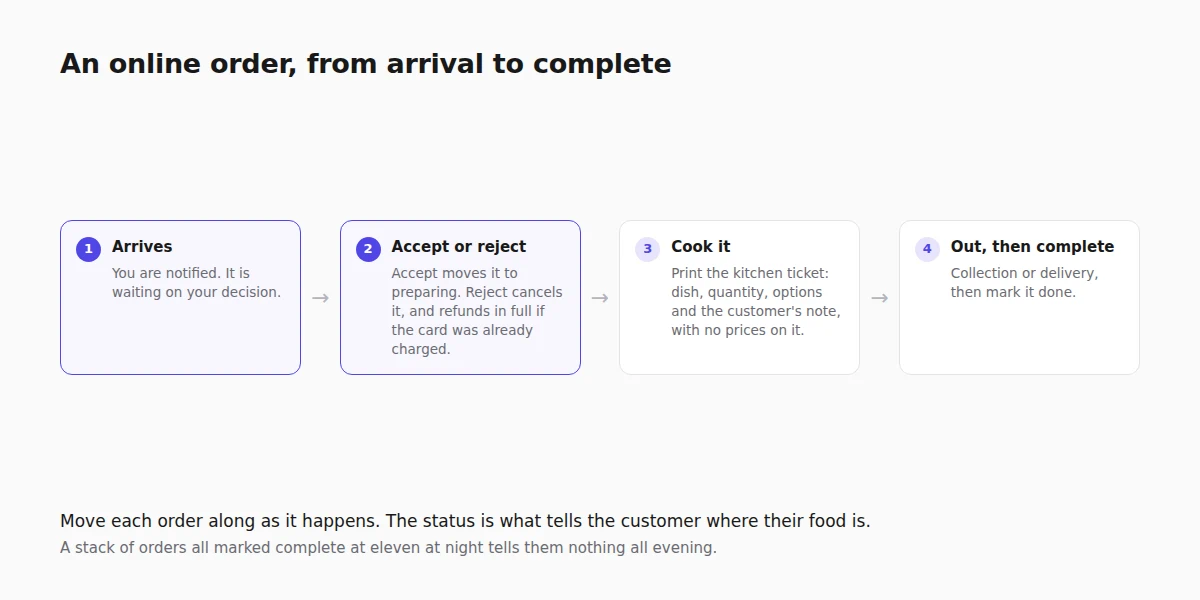
Kitchen ticket prints the version the cook actually needs: dish, quantity, the options chosen and the customer's note, in large type, with the prices left off and collection or delivery at the top. It is laid out for a receipt printer rather than A4, so it comes out of a thermal printer the right width.
Prices belong on the customer's copy and nowhere near the pass. A ticket a chef has to squint at during service is a ticket that produces the wrong dish.
Next steps
Frequently asked questions
Do I have to declare allergens online?
In much of Europe it is a legal obligation rather than a courtesy, and online ordering removes the conversation where a customer would otherwise have asked. The fourteen are recorded per dish and shown to the customer.
How do I take something off the menu for one night?
Use the dish's availability toggle rather than deleting it. It comes back with one click, and its photos, description and options are still there.
Should I watch email or the orders page during service?
The orders page. Email is fine on a quiet Tuesday and useless at seven on a Saturday.
Why does the status matter if I know what I am cooking?
Because it is what tells the customer where their food is. Marking everything complete at the end of the night tells them nothing all evening.
Related reading
- How to put your menu online and keep it right - the menu data this page depends on.