List your business in the Webkio directory
The Webkio directory is a public list of real businesses that run their websites here, sorted by what they do: restaurants, shops, salons, clinics, trades, rentals, property, services. It lives on webkio.site, the domain your site is published under. Each business has a page of its own there with the name, a screenshot, a short description, the town, what the site offers, its main pages, the contact details the owner published, and a link to the site itself.
It is off by default. Nothing about your business appears there until you switch it on, and you can switch it off again any time. This page is what you get, how to turn it on, and the rules that decide whether a listing is shown.
Why list
- A page about your business, one more place to be found from. A new site starts with no reputation; a page that names you, says where you are and links to you is one more door. It is not a substitute for your own local SEO, it is a small addition to it, and it costs nothing.
- A link to your site, and a page that can be found. The link is marked nofollow, as every directory link should be - a directory that sold followed links would be penalized, and that would cost every business on it. What you get instead is a page about your business that search engines can index, once it has a description and a town, and the people who click through.
- Company. Visitors browsing a shelf of, say, physiotherapy clinics see yours beside the others, and your own page points them to more like it. For a one-location business that is the kind of page a customer finds when they search for the trade rather than the name.
Switch it on
In your site's sidebar, under Settings, choose Directory listing. Turn on List my site in the directory and press Save changes.
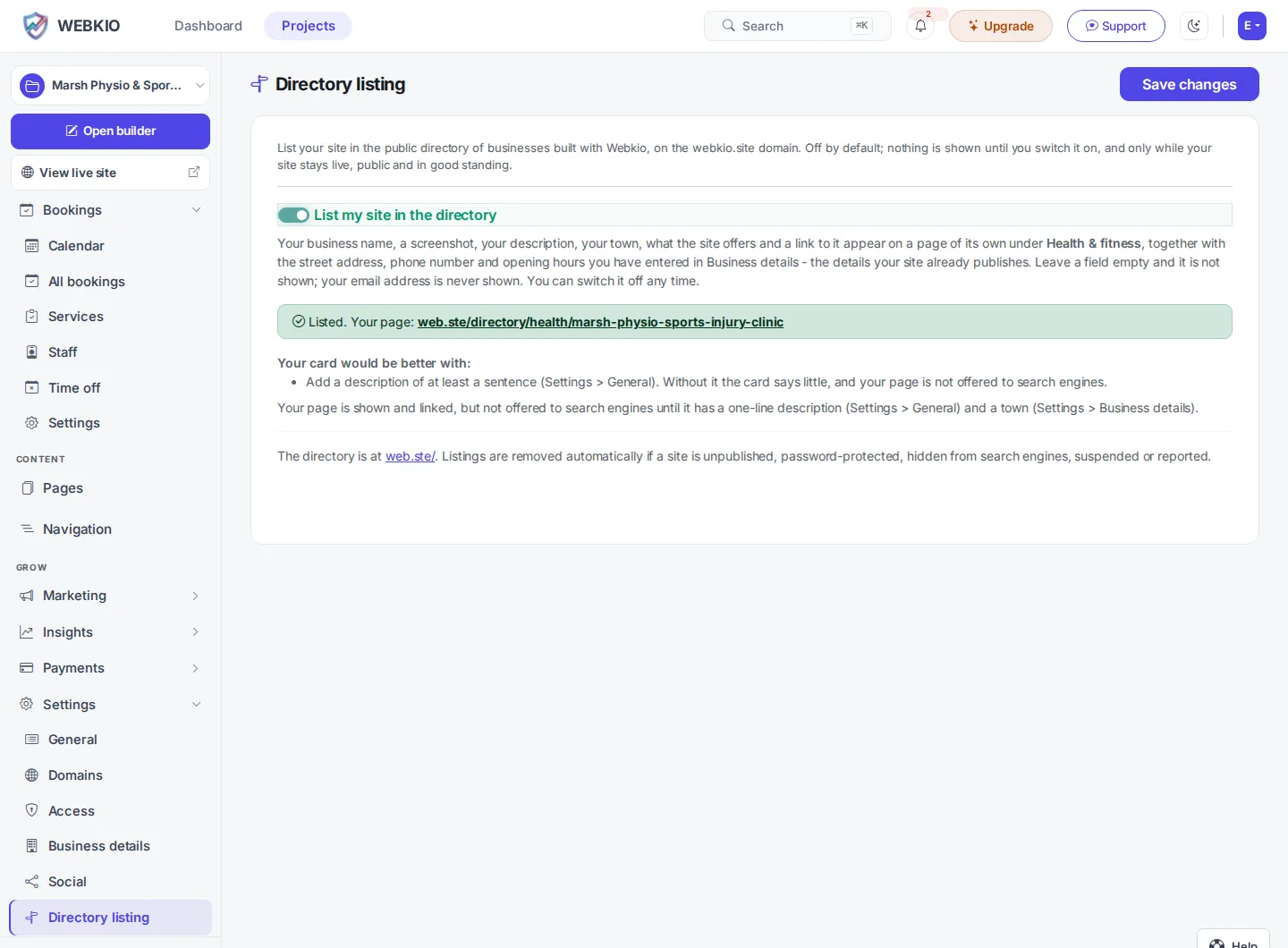
The panel tells you three things straight away:
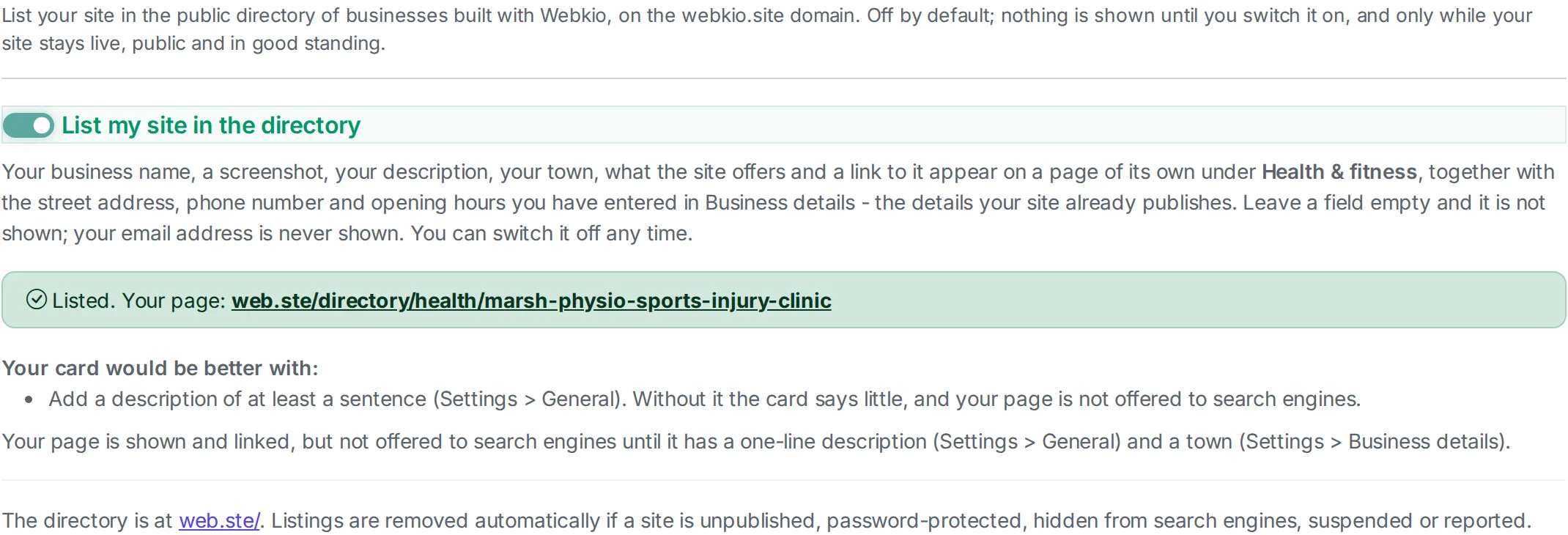
- Which shelf you are on. The directory places your site by the Industry you chose in Settings > General; when that says nothing useful (the setup wizard writes "By appointment" for any booking site), by the words in your business name; then by what the site does. "Marsh Physio & Sports Injury Clinic" lands under Health & fitness whatever the industry field says.
- Whether the listing is live, and your page's address. If it is on but not shown, the panel names exactly what is missing (see the rules below), and the listing appears by itself the moment that is fixed. You do not need to come back and press anything.
- What would make the card better. A one-line description, your town and country, and a screenshot. None of these block the listing; all of them make people click.
What appears
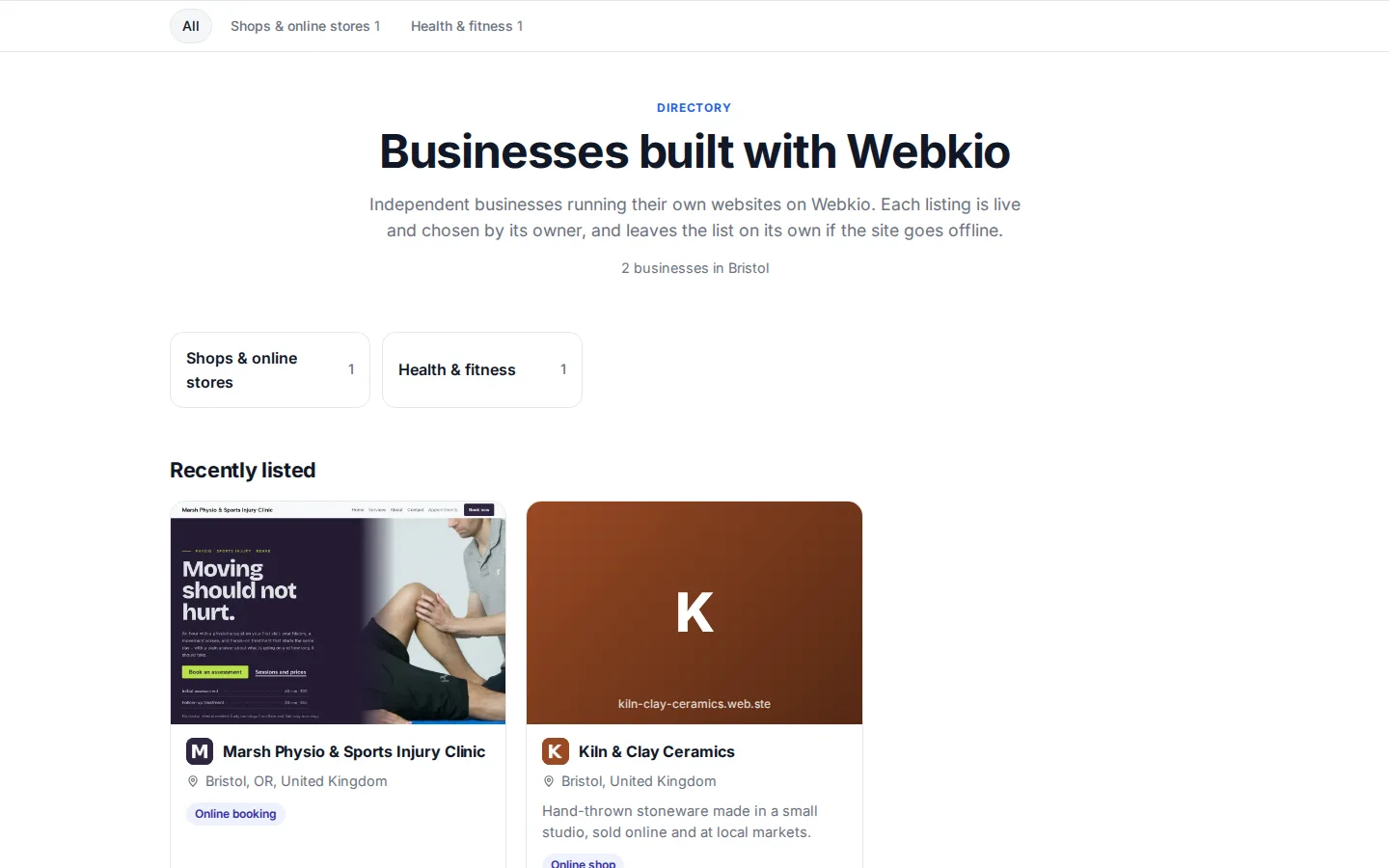
Your card shows your site's icon, the business name, your town and country, the first lines of your description, and up to three tags for what the site offers: Online shop, Online booking, Menu, Online rentals, Property listings, Quote requests, Donations, Blog. Above the card is your screenshot; until the first one is taken, a block in your site's own color with the business initial.
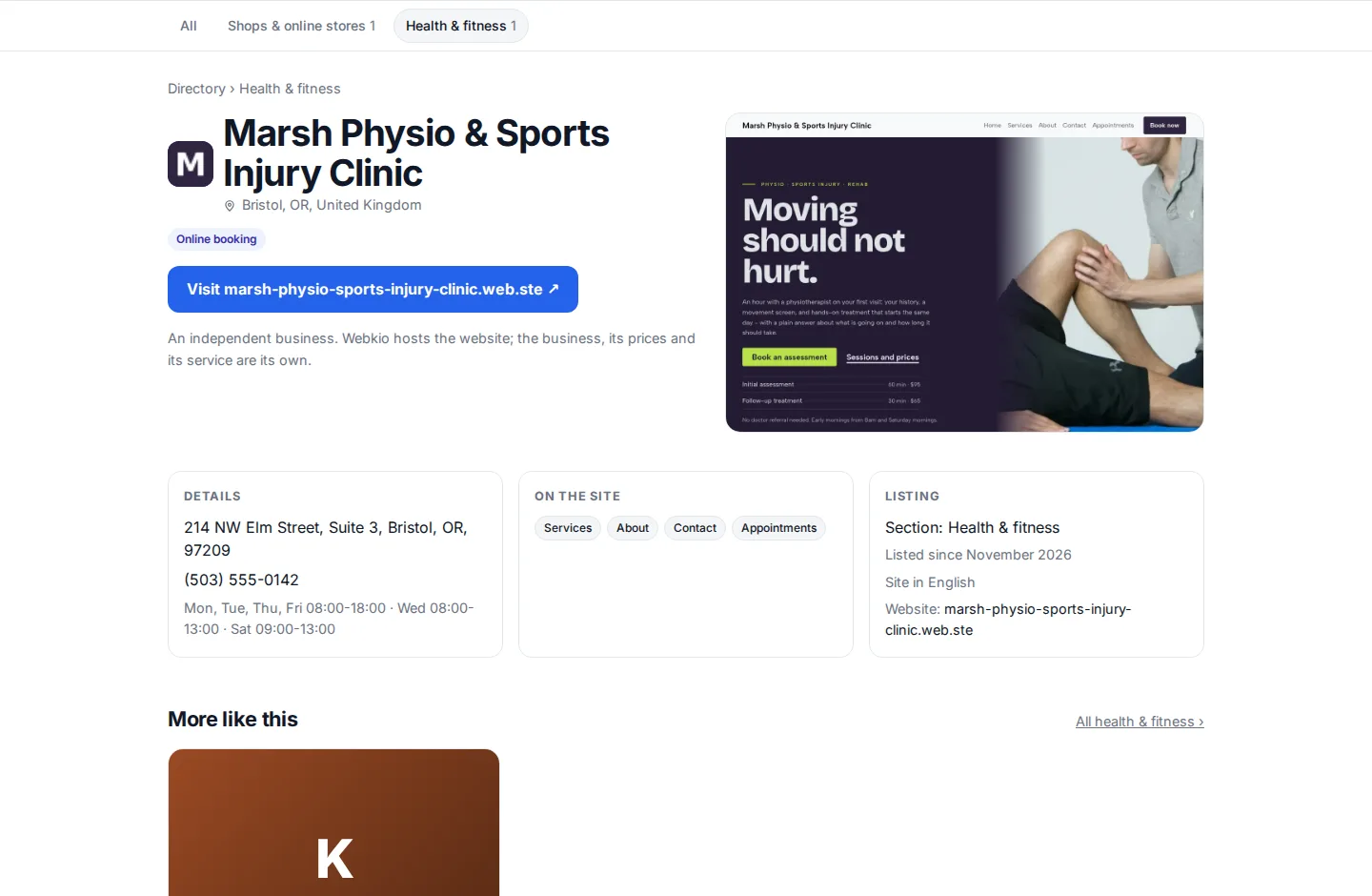
Your own page adds the full description, a Visit button to your site, and three boxes:
- Details. Your street address, phone number and opening hours, when you have entered them in Business details. Hours are collapsed to one line: "Mon-Fri 08:00-18:00 · Sat 09:00-13:00". A field you leave empty is simply not shown; the box disappears altogether when all three are empty.
- On the site. The pages a visitor would open - Services, Shop, Appointments, Our Story - each a link to that page. Not the home page (the Visit button is that), not your legal pages, and not the shop's cart, product and checkout pages.
- Listing. The section you are in, the month you were listed, the language your site is in, and your address.
Below that, More like this: three other businesses from your section, or from your country when your section has no others yet. A note on every page says the business is independent of Webkio.
Everything on it is read from your project every time the page is built, so you edit it where you already edit it:
| On the page | Where it comes from |
|---|---|
| Business name | Settings > General > Name |
| Site icon | The favicon under Settings > General; your initial on your theme color until you set one |
| Description | Settings > General > Description (the first lines on the card, all of it on your page) |
| Town, region, country | Settings > Business details - see Business details |
| Street address, phone, opening hours | Settings > Business details, the same fields your site's contact section and structured data use |
| What the site offers | The modules you have switched on: a shop, bookings, a menu, rentals, properties, quotes, donations, a blog |
| Pages | Your published pages, in the order of your site, minus the home, legal and checkout pages; a password-protected page is left out |
| Screenshot | Taken automatically from your live home page; it refreshes after you publish a change, the next time you open your Projects list |
| The link | Your site's own address: your domain if you have connected one, otherwise your free subdomain - see Connect a custom domain |
The rules
A directory of dead links, private sites and placeholders would hurt every business on it, so a listing is shown only while all of these are true. The settings panel names the one that fails.
- The site is published and live. Something has been published, the status is Live, and the site is not suspended. A Draft or Maintenance site is not listed. See Site status & visibility.
- It is open to everyone. Not password-protected and not restricted by country. The directory sends anyone to your site, so it cannot send them to a door that is locked for them.
- It wants to be found. The home page is not set to noindex or excluded from the sitemap, and the site has been claimed (a guest preview is not a business yet). A site its owner hides from search engines is not asking to be listed.
- It has an address to link to. A subdomain or a connected domain; every published site has one.
- The account is in good standing. Email verified, not suspended, not deleted; team members cannot list a site on the owner's behalf.
- No open report. A site with an open abuse report, or a moderation flag for phishing, malicious links, illegal, adult or hateful content, is hidden until the report is resolved. It comes back by itself when it is.
- A real name. "My Website" is what a template is called, not a business.
- Webkio has not taken it down. We can remove a listing that misrepresents a business or breaks the acceptable use policy; the panel says so, with the reason.
Nothing about these is stored. If your site goes offline, the listing is gone within a couple of minutes; when it comes back, so is the listing.
Make the card worth clicking
- Write a description that says what you do and for whom, in one or two sentences. "Physiotherapy and sports injury rehab in Asheville, no referral needed" beats "Welcome to our website".
- Fill in town and country under Business details. The card shows them, and the page's structured data carries them, which is the same information your LocalBusiness schema uses. Add the phone and the opening hours while you are there: a visitor who can see you are open now is a visitor who calls.
- Switch on the module you actually use. The tags on the card come from your shop, bookings or menu being live, so a booking site with bookings switched off shows nothing to book.
- Make the home page look like the business above the fold. The screenshot is the first thing people see on the shelf, and it is taken from the top of the page.
- Give the page a few days. Search engines pick up the directory's sitemap on their own schedule.
Come off the list
Turn the switch off and save. The page disappears within a couple of minutes and the address returns a "not found". Turn it back on later and you get the same address again: it is kept for you so a link somebody saved still works.
Frequently asked questions
Does listing cost anything?
No. Listing is free on every plan, including Free, and the listing is the same on every plan: the page, the link and the place on the shelf. Nothing about it is bought.
Why is my page not in Google yet?
A listing page is offered to search engines once it has a description of at least a sentence and a town or country in Business details. Until then it is shown and linked but marked not to be indexed, so the directory never fills search results with pages that say only a name. Add those two and give it a week.
I switched it on and nothing shows. Why?
Read the panel: it names the rule that is not met, most often that the site is still in Draft, or that the account's email is not verified yet. Fix that, and the listing appears by itself.
Can I choose the section?
Not directly. The section follows the Industry in Settings > General, so set that to the trade you want to be found under; the name of your business is read when the industry says nothing useful.
Will the screenshot update?
Yes. The screenshot is taken from your live home page and refreshed in the background when you open your Projects list after publishing a change. Until the first one exists, the card shows a block in your site's color with the business initial.
Does it show my address or phone number?
Only what you have entered under Business details, and only the details your site already publishes: the street address, the phone number and the opening hours. Your email address is never shown. Leave a field empty and it does not appear; empty all three and the Details box is not there at all.
Can I choose which pages are shown?
The list is your published pages minus the home, legal and checkout pages, in the order they have on your site. A page you unpublish or password-protect leaves the list on the next build.
Can I list more than one site?
Yes. Each site has its own switch, its own page and its own section.
I run a site for a client. Can I list it?
Only the account that owns the site can switch it on, and the business shown is theirs. Ask them; it is their listing.
Why was my listing taken down?
The panel shows the reason we recorded. Usually it is an open report on the site, which hides the listing automatically and restores it when resolved. If we removed it ourselves and you think that is wrong, contact us.